Translations
Show Ralph's shortcuts, workflows, product block and trigger bar in each language your store publishes, and adjust every text from the page where it lives.
Ralph already replies in the language your shopper writes in. With Translations, everything around the replies follows: the shortcuts, the product questions, the workflows, the product block, the trigger bar and the widget's own buttons appear in the language your shopper browses in.
You write your texts once, in your default language: the language your texts start from, usually your store's main language. Ralph translates them into each language you prepare, and you can rewrite any of them.
What Ralph translates
| Text | Where you translate it |
|---|---|
| The widget's buttons and messages | Nothing to write: they follow the language the widget shows |
| Home shortcut labels | Rules → Shortcuts. Each instruction stays the same in every language |
| Product and collection questions | Knowledge → Catalog Knowledge, one product or collection at a time |
| Workflow greeting, questions and answer options | Workflows, on the workflow |
| Product block title, subtitle and question field placeholder | Surfaces → Product block |
| Trigger bar badge and text | Ralph → Theme |
| Product titles, options and metafields | Your translations in Shopify |
Your languages
Open Translations from the account menu of the dashboard.
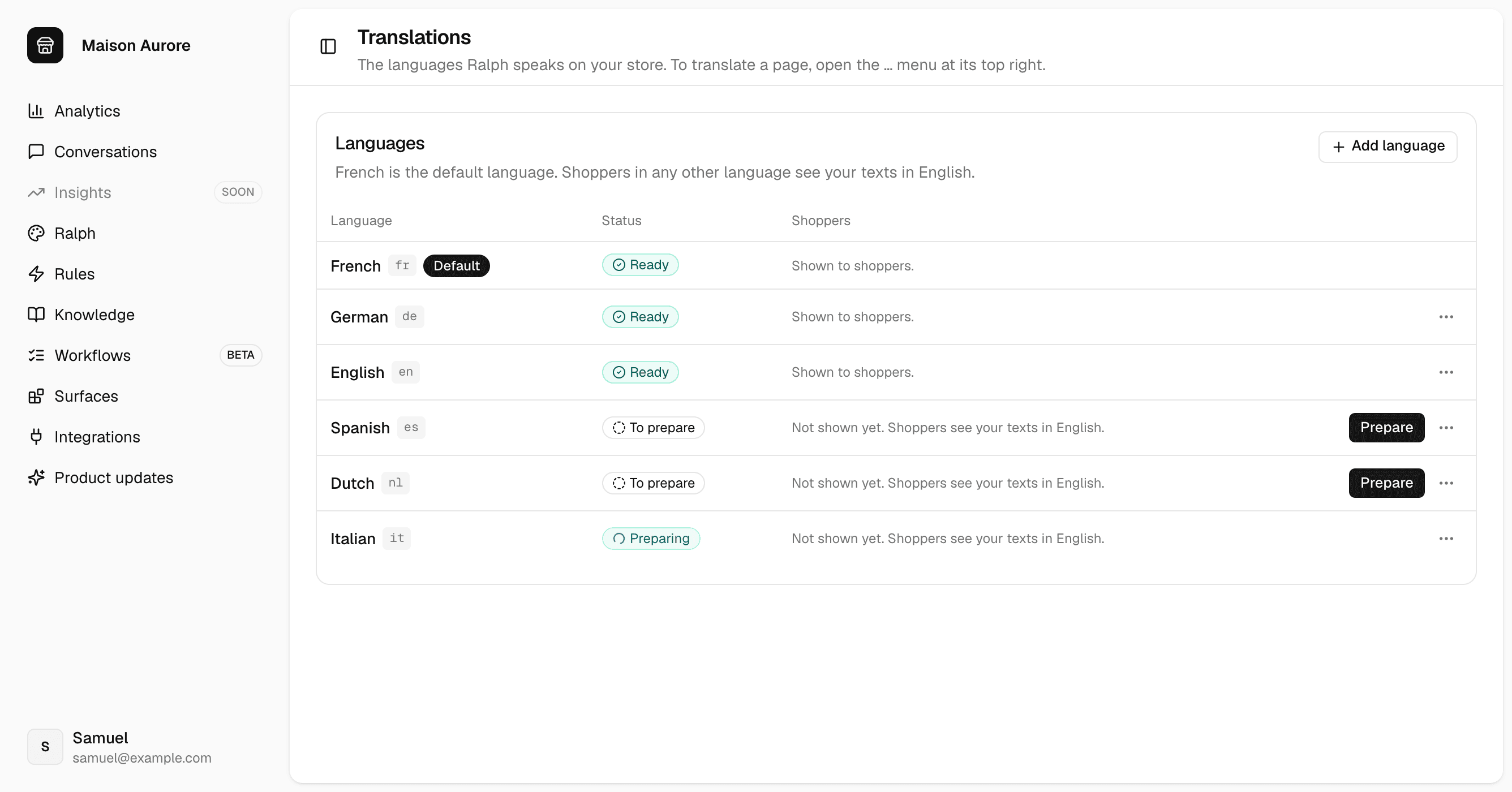
Your list starts from the languages your store publishes, with your store's main language as the default (English, if your main language is not one of Ralph's ten). English also joins the list as soon as your store publishes a language other than French.
When you install Ralph, every language in your list starts Preparing, your default language included. Once Ralph has read your catalog, it prepares each language in the background, then marks it Ready. Your default language is shown to shoppers all along, even while Ralph prepares it.
| Status | What it means |
|---|---|
| Ready | Prepared and shown to shoppers |
| Preparing | Ralph is preparing it |
| To prepare | In your list, not prepared yet |
| Removed | Hidden, its texts are kept |
| Not supported yet | Published on your store, outside Ralph's languages |
Ralph speaks ten languages: English, French, German, Spanish, Italian, Dutch, Portuguese, Polish, Swedish and Danish. The Shoppers column says what shoppers in each language see right now.
What shoppers see
| Your shopper browses in | Ralph shows your texts in |
|---|---|
| A language that is Ready, or your default language | That language |
| Any other language | English, when English is Ready. Otherwise, your default language |
Ralph replies in the language your shopper writes in, whatever language the widget shows.
If you prepare nothing, nothing breaks: shoppers in any other language see a complete widget, in that fallback language. On a collection page, they see your home shortcuts instead of the collection's questions.
Prepare a language
Pick the language
On a language To prepare, click Prepare.
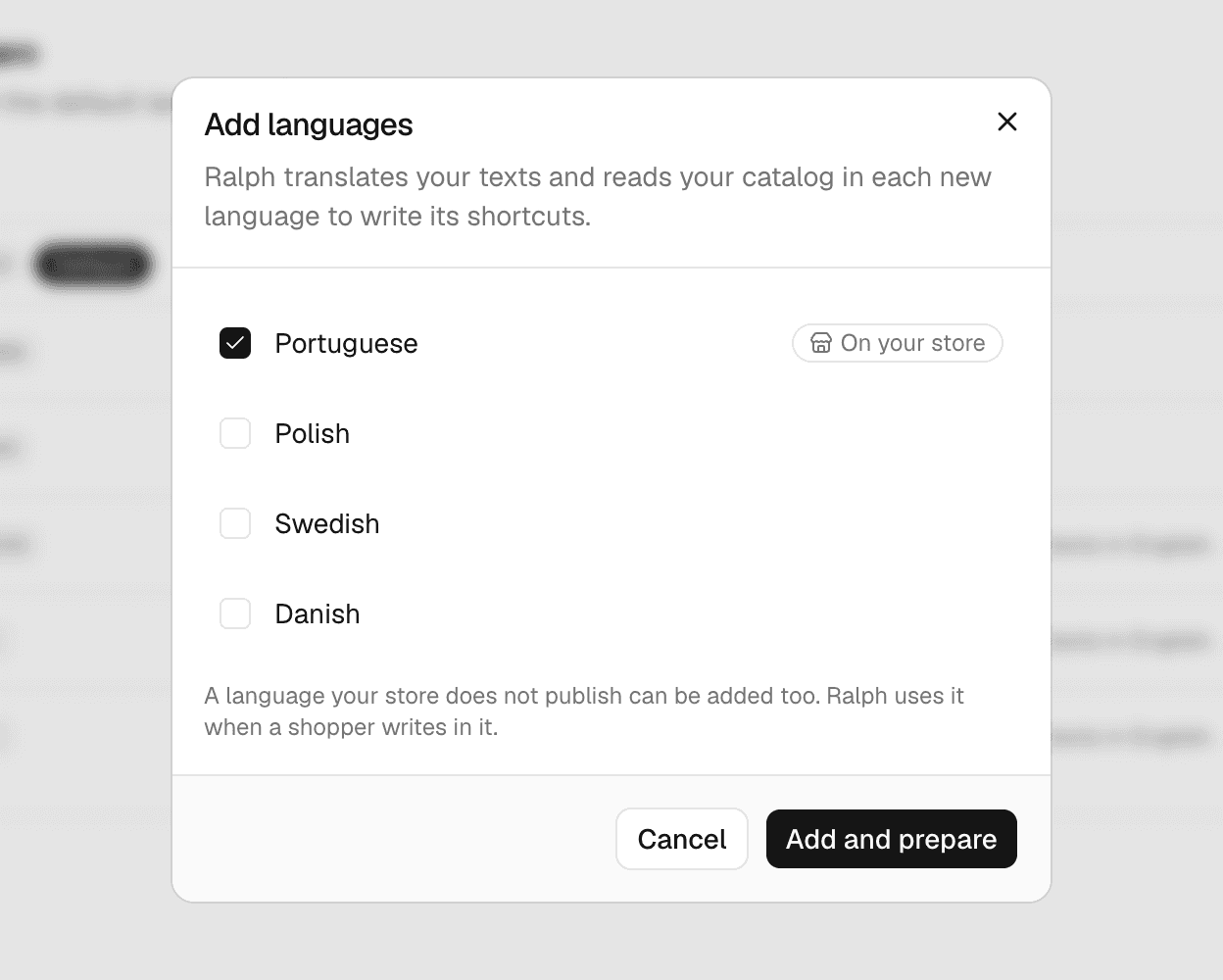
For a language that is not in your list, click Add language. The languages your store published when your list was set up are marked On your store. You can also add one your store does not publish: Ralph uses it when a shopper writes in it. Then click Add and prepare.
Let Ralph prepare it
The language shows Preparing, with a spinner. Ralph translates your texts into it, and reads your catalog in that language to write its product and collection questions. The preparation runs in the background and takes longer on a large catalog.
Until then, shoppers in that language see the fallback above, unless it is your default language. Once the language is Ready, they see your texts in it.
Manage your languages
| Action | Where | What happens |
|---|---|---|
| Remove | The row's … menu | Ralph stops showing the language and keeps every text |
| Add back | A Removed language | The language is Ready again at once, with its texts |
| Set as default | The row's … menu, on a Ready language | You now write your texts in this language |
A language To prepare that you remove simply leaves your list. A language being prepared cannot be removed, and neither can your default language: set another one as the default first.
When you change the default language, on Shortcuts, Workflows, Product block and Trigger bar:
- Your texts in the previous default stay, and now count as texts you wrote: Ralph no longer rewrites them.
- A field still empty in the new default takes the previous default's text.
- Empty fields in the other languages then show the new default's text.
If your store has too many of these texts to move at once (many workflows, for example), the dashboard asks you to contact us to make the change.
Translate a page
Every page with texts your shoppers read has a … menu at its top right. Its Translate item opens a drawer over the page.
Open the drawer
Save your changes on the page first: Translate waits until the page is saved. Then open … → Translate.

Pick the language
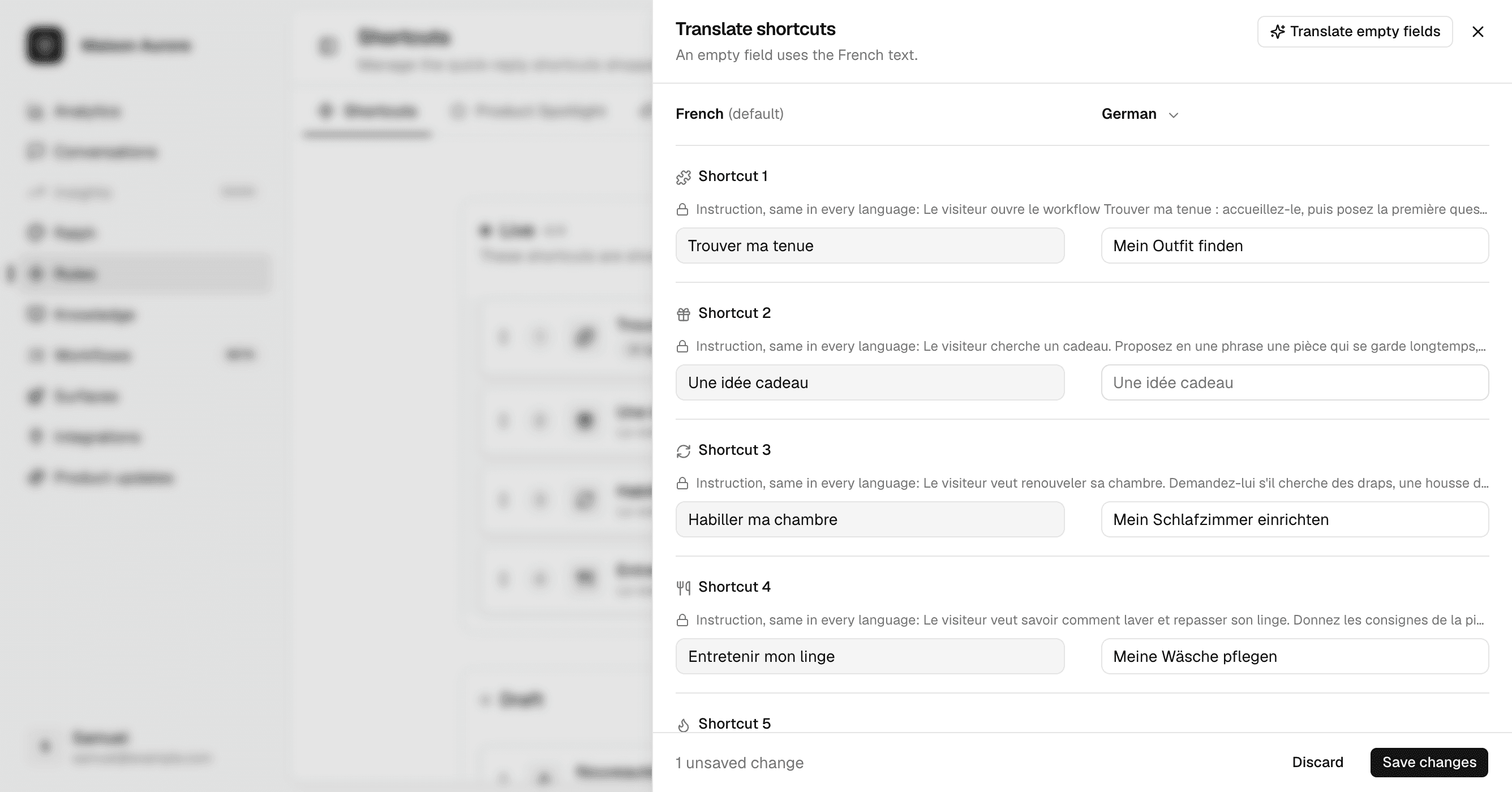
Your default language sits on the left, read only. Pick the language to translate into at the top of the right column. It lists the Ready languages.
Write, or let Ralph write
Type your texts in the right column. An empty field shows the default text in grey, and shoppers see that text until you fill it in.
Translate empty fields, beside the close button, has Ralph fill every empty field, in every Ready language. It never writes over a text you typed. The fields fill in as Ralph writes them. If some are still empty after a while, open the drawer again a few minutes later.
Save
Save changes saves what you typed, in every language you edited. Closing the drawer with unsaved changes asks you first.
Products and collections
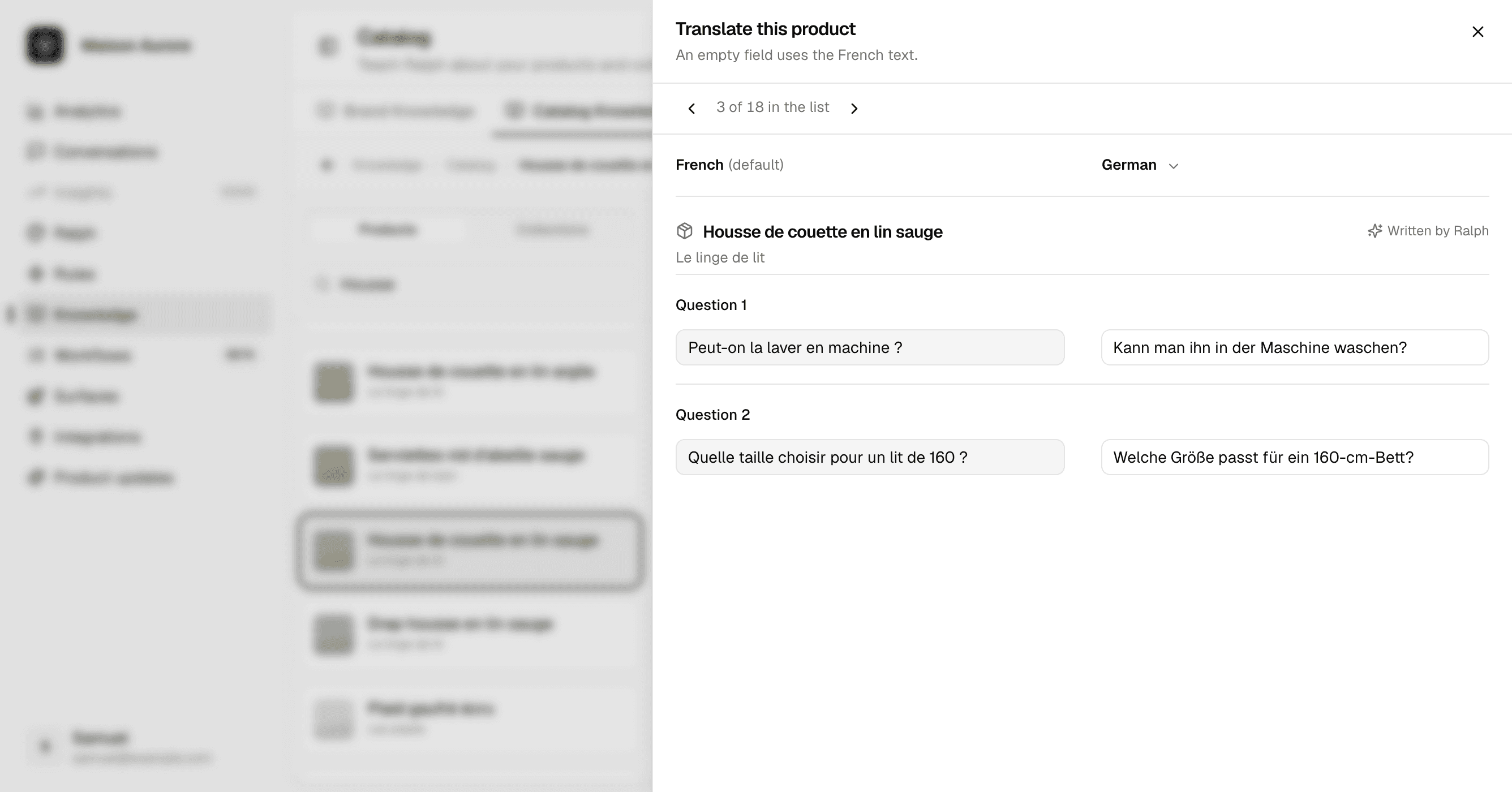
On Knowledge → Catalog Knowledge, pick a product, or a collection under Collections, then open … → Translate. ‹ and › move to the previous or next item of your list without closing the drawer.
Ralph writes the questions of each language itself, from your product as your store shows it in that language. They carry Written by Ralph. Once you save an item's questions in a language, all of them are yours there: Ralph no longer rewrites them, and Written by Ralph goes.
Two differences with the other pages:
- There is no Translate empty fields: Ralph writes these questions when it prepares the language. On a product, an empty question is not shown to shoppers. On a collection, a question cannot be left empty.
- When you save a product's questions in your default language on Catalog Knowledge, Ralph also rewrites them in French and English when those are Ready, your edits in them included.
When your default text changes
You keep editing your texts on each page, in your default language. When you save a new text on Shortcuts, Workflows, Product block or Trigger bar, Ralph updates the Ready languages:
| The field in another language | After you save |
|---|---|
| Empty | Ralph writes its translation of the new text |
| Filled by Ralph | Ralph rewrites it from the new text |
| Typed by you | It stays as you wrote it |
A field whose default text did not change keeps its translations. To hand a field back to Ralph, empty it, click Save changes, then Translate empty fields.